

Claiming & Unwrapping Tokens
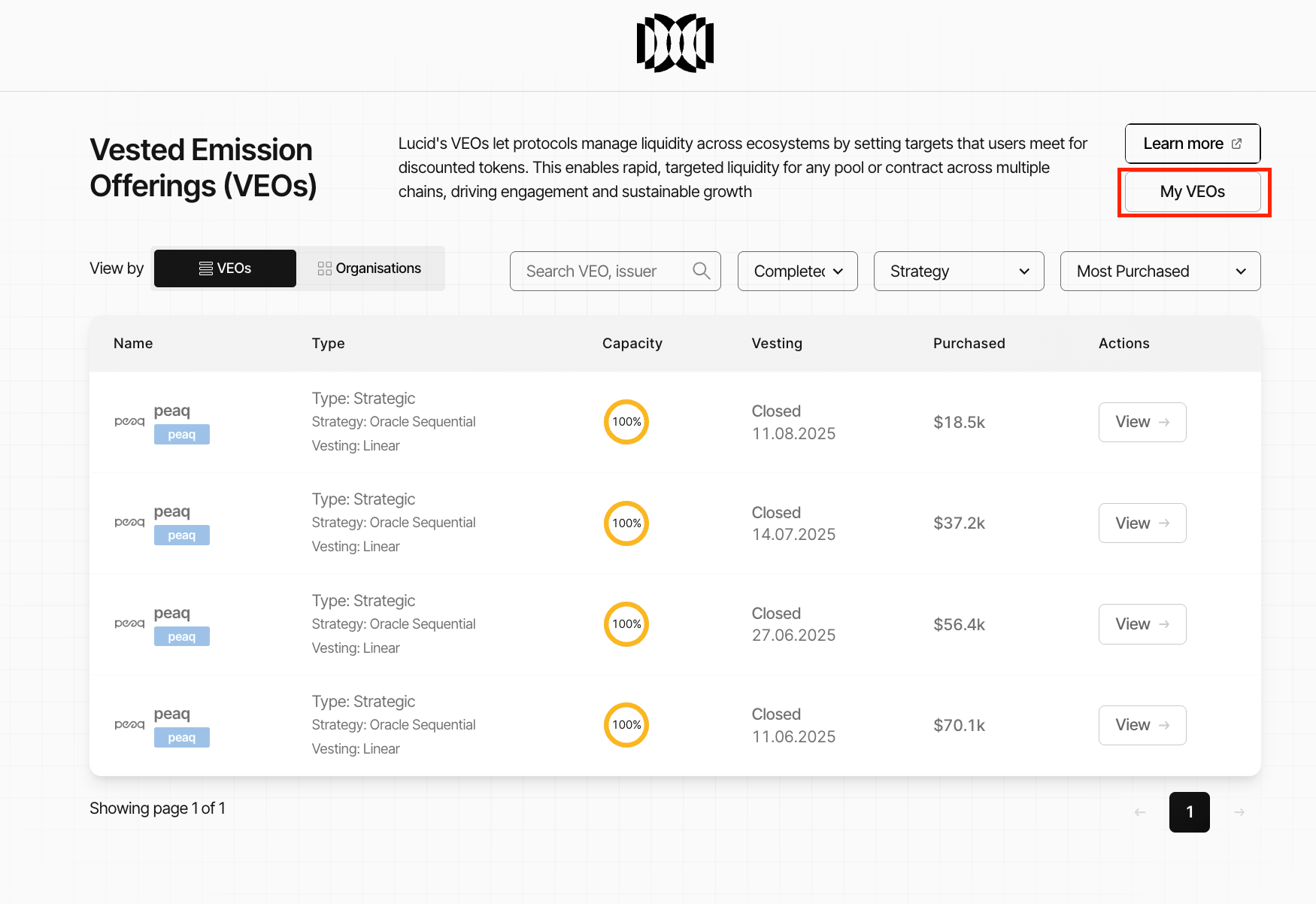
Accessing the My Deals Dashboard
Buyers can monitor and manage settled OTC positions through the My Deals dashboard.
The dashboard can be accessed through either of the following methods:
- Click My Deals in the top-right corner of the OTC page.
- Or open the sidebar dashboard navigation and access My Deals.
Dashboard Overview
The My Deals dashboard provides a complete overview of purchased OTC positions and vesting activity.
The dashboard displays:
- total value locked
- total purchased deals
- available claimable tokens
- vesting progress
- participation history
- claim actions
The interface also includes:
- vesting progress charts
- claim tracking
- token allocation breakdowns
Claim Table
The claim table provides a detailed breakdown of all OTC deals in which the connected wallet participated.
Each entry includes:
| Field | Description |
|---|---|
| Token Type | Token allocated through the OTC deal |
| Purchase Price | Price paid during participation |
| Vesting Status | Current vesting progress |
| Claimable Amount | Tokens currently available for claiming |
| Action | Claim interaction button |
This allows buyers to monitor vesting status across all active and historical OTC positions.
Claiming Vested Tokens
Governance tokens become claimable progressively according to the configured vesting schedule.
To claim vested tokens:
- Open the My Deals dashboard.
- Locate the deal with claimable tokens.
- Click Claim inside the Action column.
- Confirm the transaction in your wallet.
- Claimed tokens will be transferred to your wallet.
Users can repeat this process periodically as additional tokens vest over time.
Wrapped Token Support
Some OTC allocations may use wrapped token infrastructure depending on the ecosystem configuration.
Wrapped token support depends on the specific organisation and deployed token infrastructure.
Examples may include:
- wrapped governance tokens
- bridged governance assets
- ecosystem-specific wrapped token systems
Not all tokens purchased through OTC deals require unwrapping.
Identifying Wrapped Tokens
Users can determine whether a token requires unwrapping by:
- Opening the organisation’s Summary Page.
- Reviewing whether the organisation includes a Wrapping module.
If the Wrapping module exists:
- the distributed token is wrapped
- unwrapping will be required before standard usage
Unwrapping Tokens
To unwrap supported OTC tokens:
- Connect your wallet.
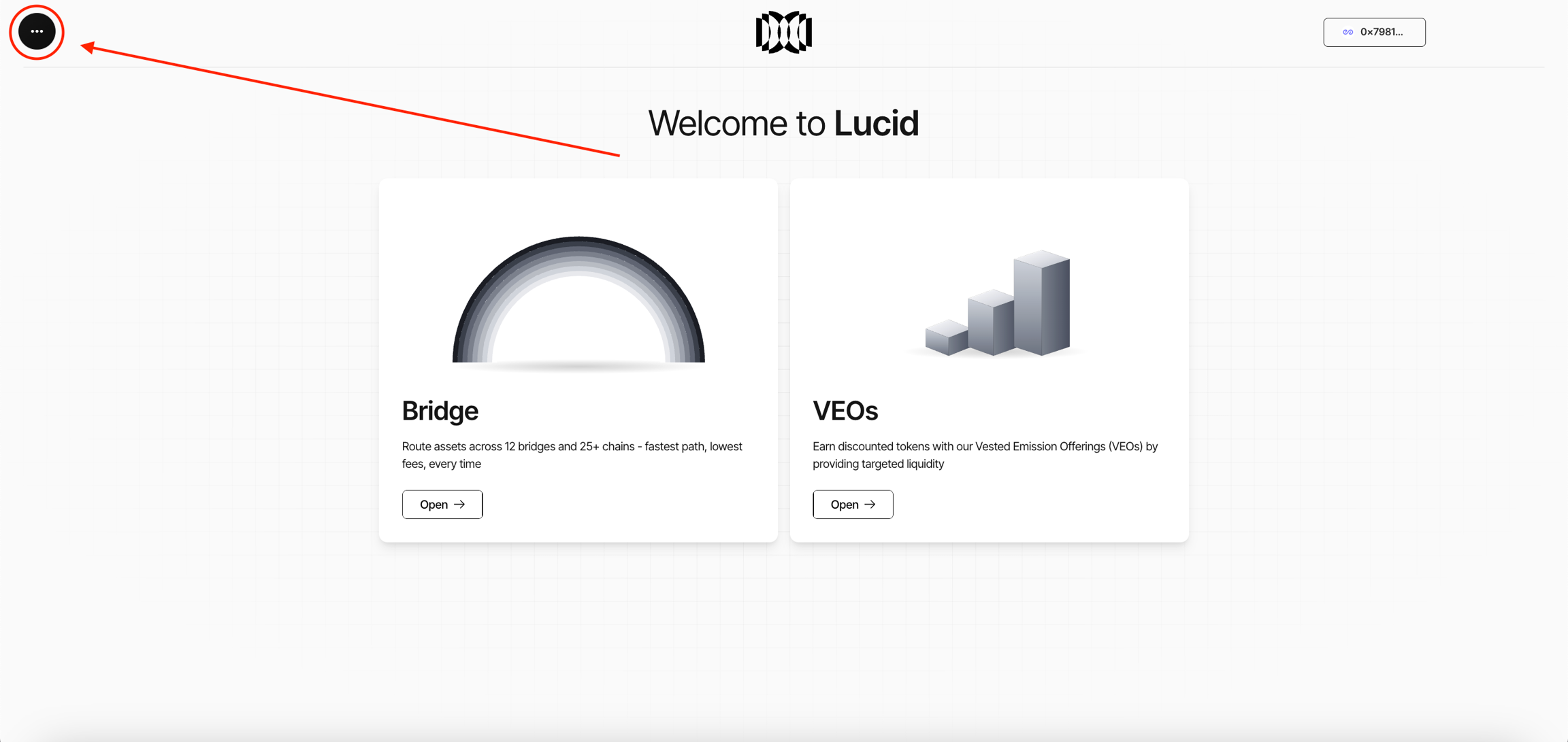
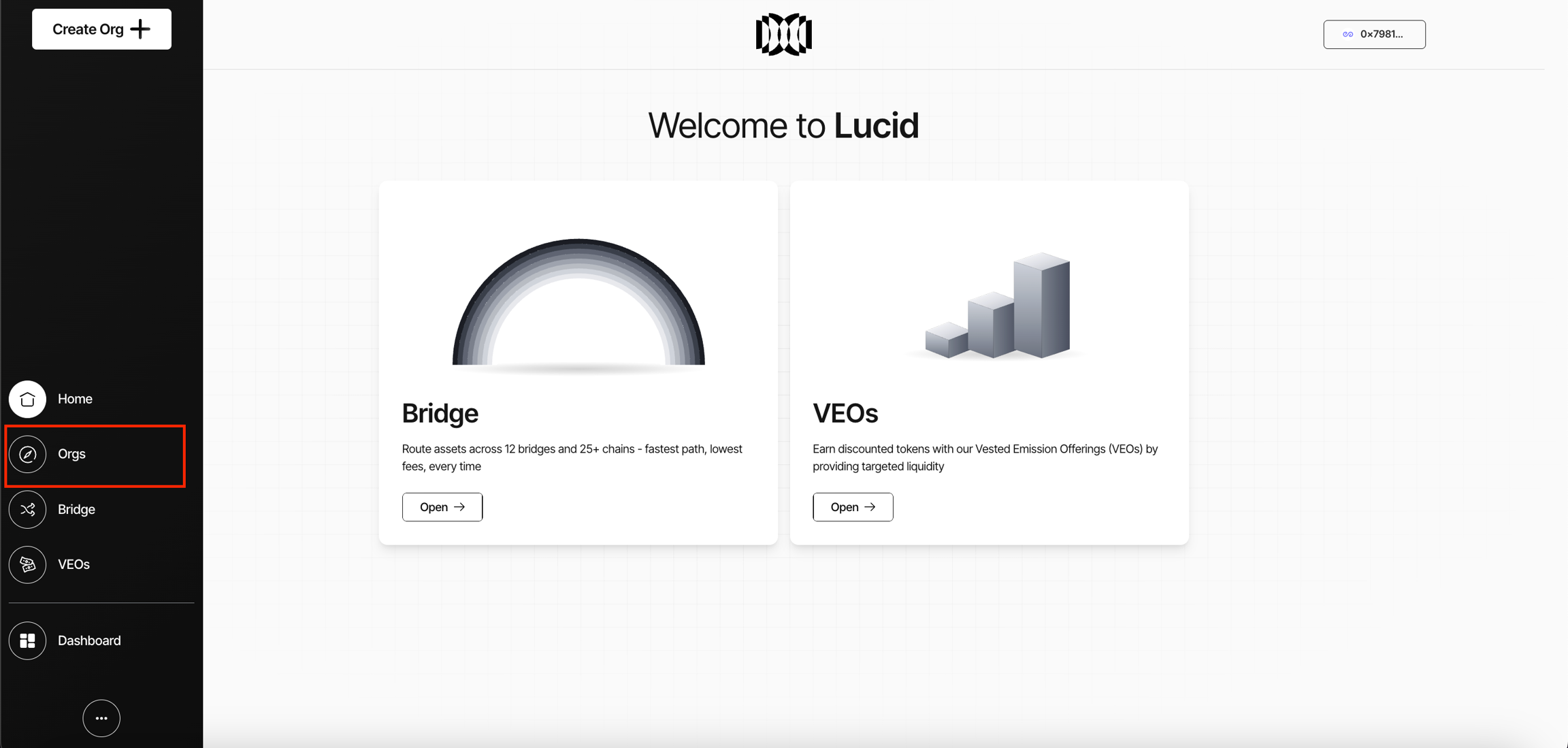
- Navigate to the Organisations page.
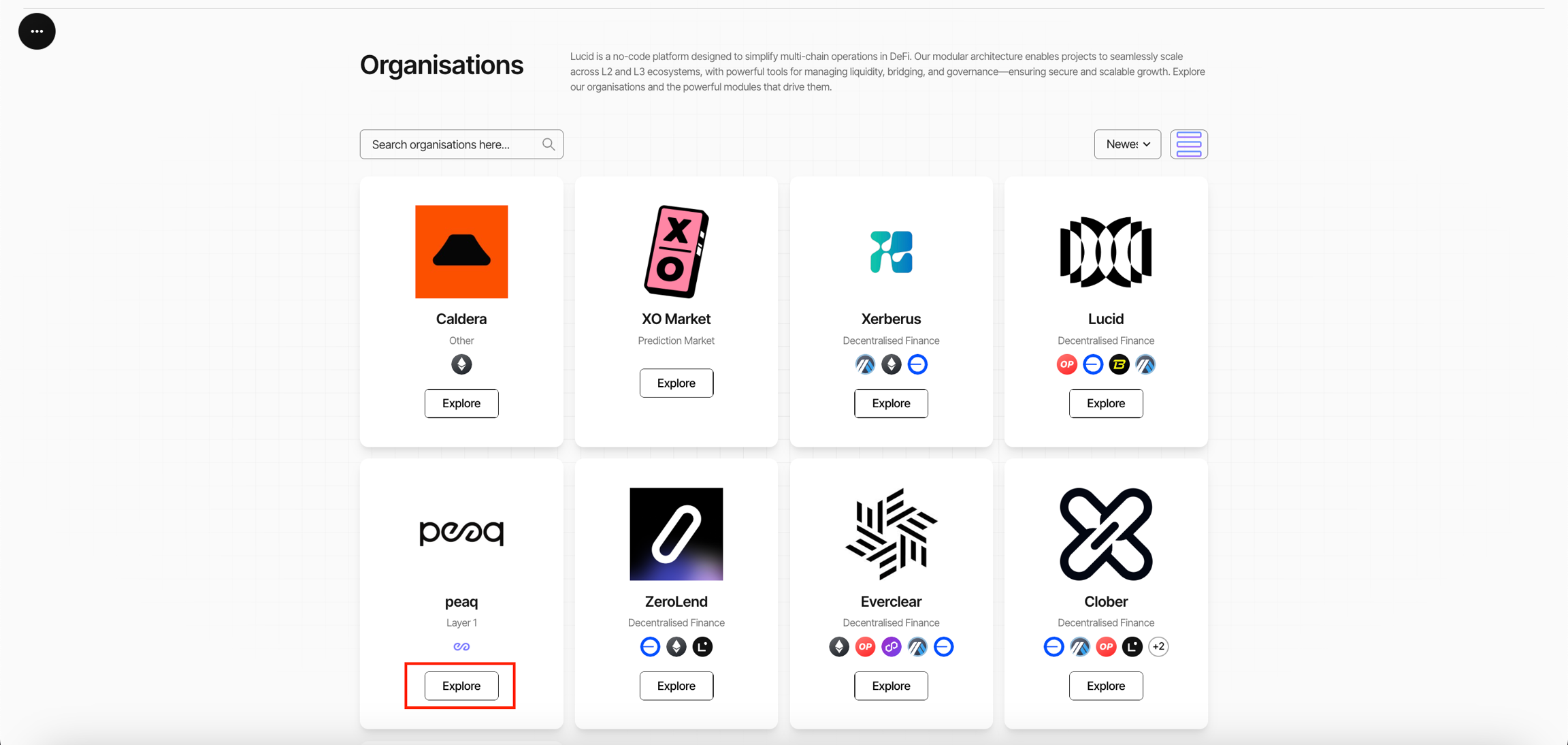
- Click Explore on the relevant organisation.
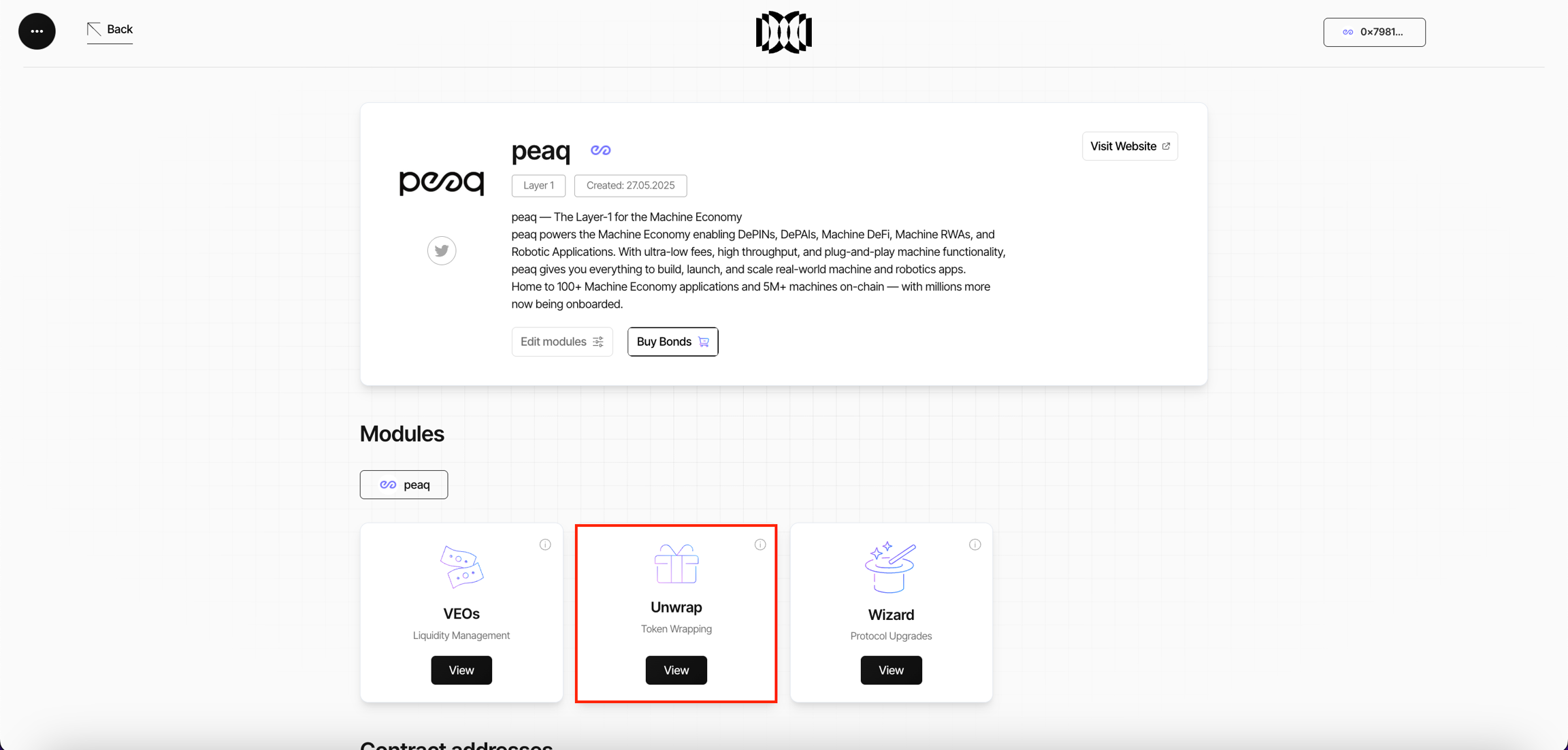
- Open the Wrapping or Unwrap module.
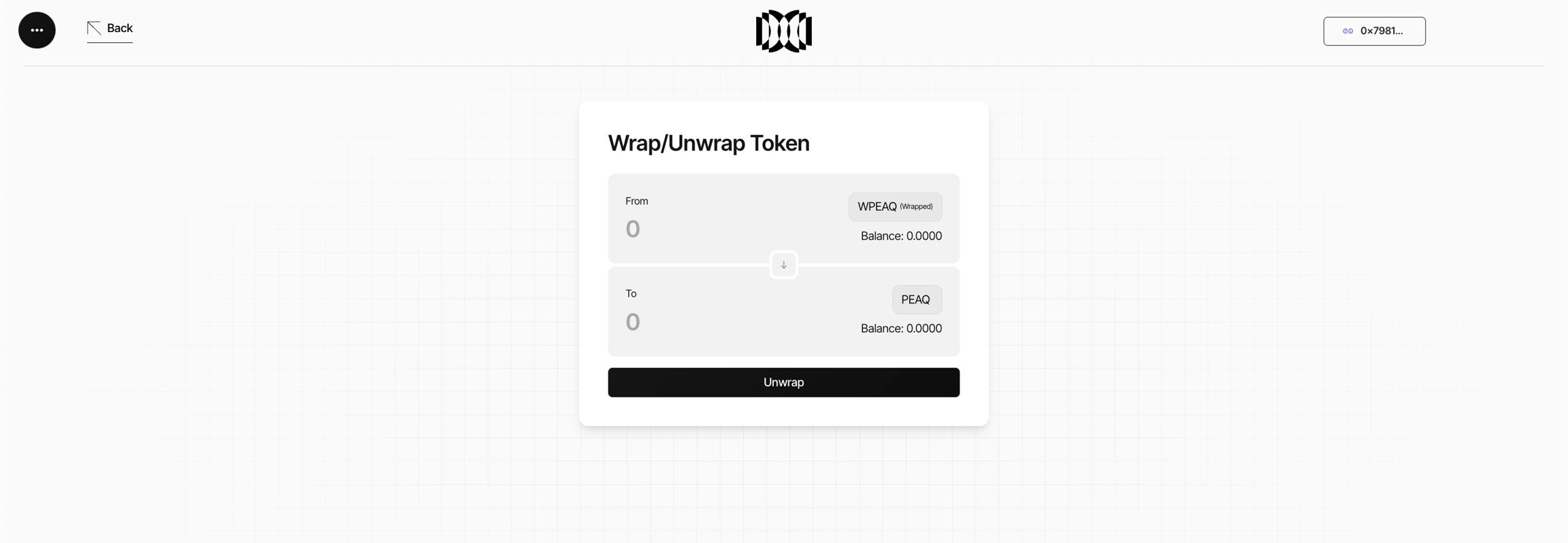
- Enter the amount to unwrap.
- Click Unwrap.
- Confirm the transaction in your wallet.
Automatic Unwrap Suggestions
In some cases, Lucid may automatically suggest an unwrap transaction immediately after a token claim.
If the automatic unwrap transaction is dismissed or cancelled:
- users can return later through the organisation’s unwrap interface
- or use the direct unwrap portal if provided by the ecosystem
Vesting Management
The My Deals dashboard remains the central interface for:
- monitoring vesting schedules
- reviewing claim history
- managing claimable balances
- tracking active OTC positions
- accessing token management actions
This allows buyers to coordinate all post-settlement token management through one interface. Deal deposits, vesting progress, and claims remain independently verifiable on-chain.