

How To Use Multi-Consensus Transfers
Creating a Message Transfer
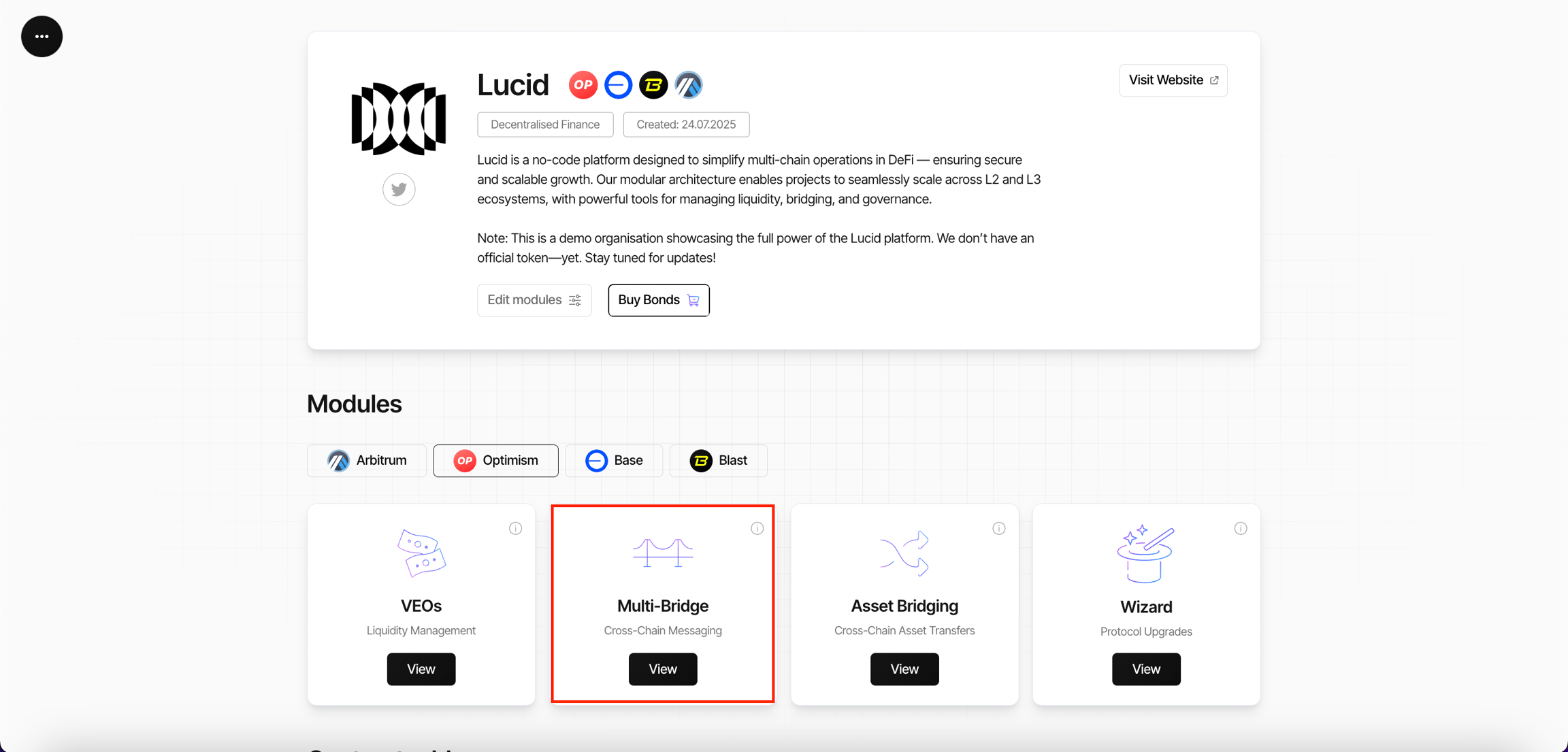
- Open the Multi-Bridge module inside the selected Organisation.

- Click Add Transaction.
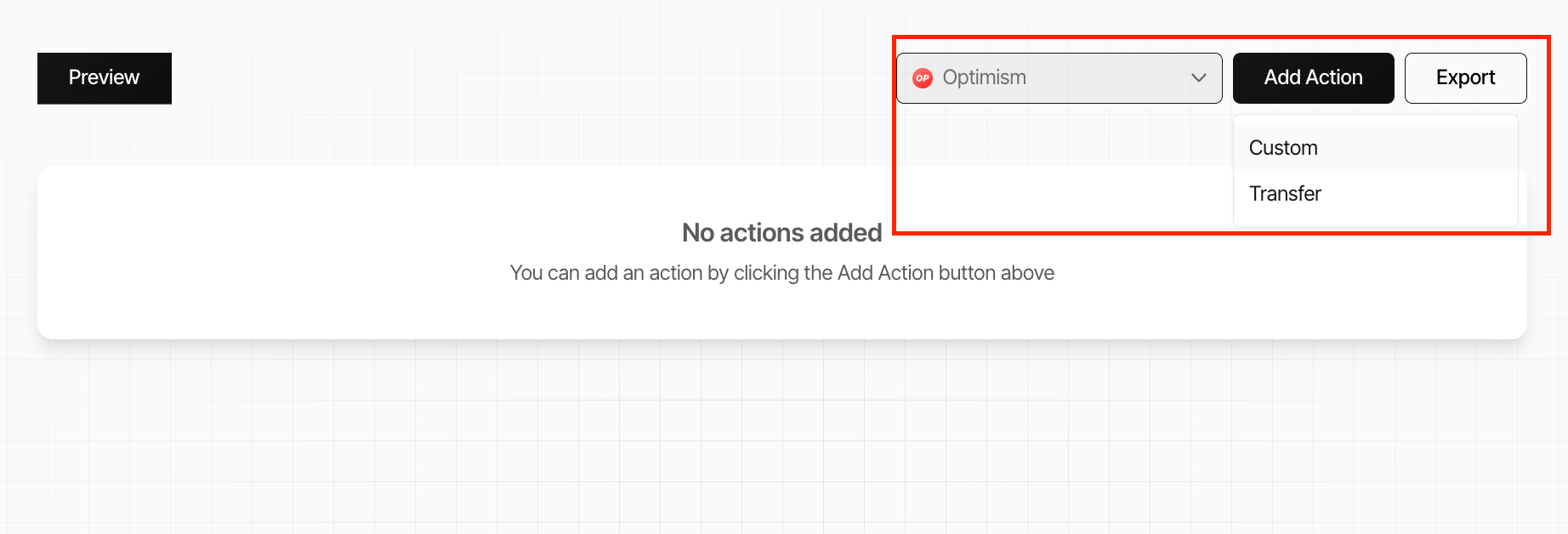
- Select Add Action.
- Choose one of the following:
- Custom
- Transfer
Custom Message Execution
The Custom flow is used for:
- governance proposals
- contract interactions
- protocol upgrades
- operational messaging
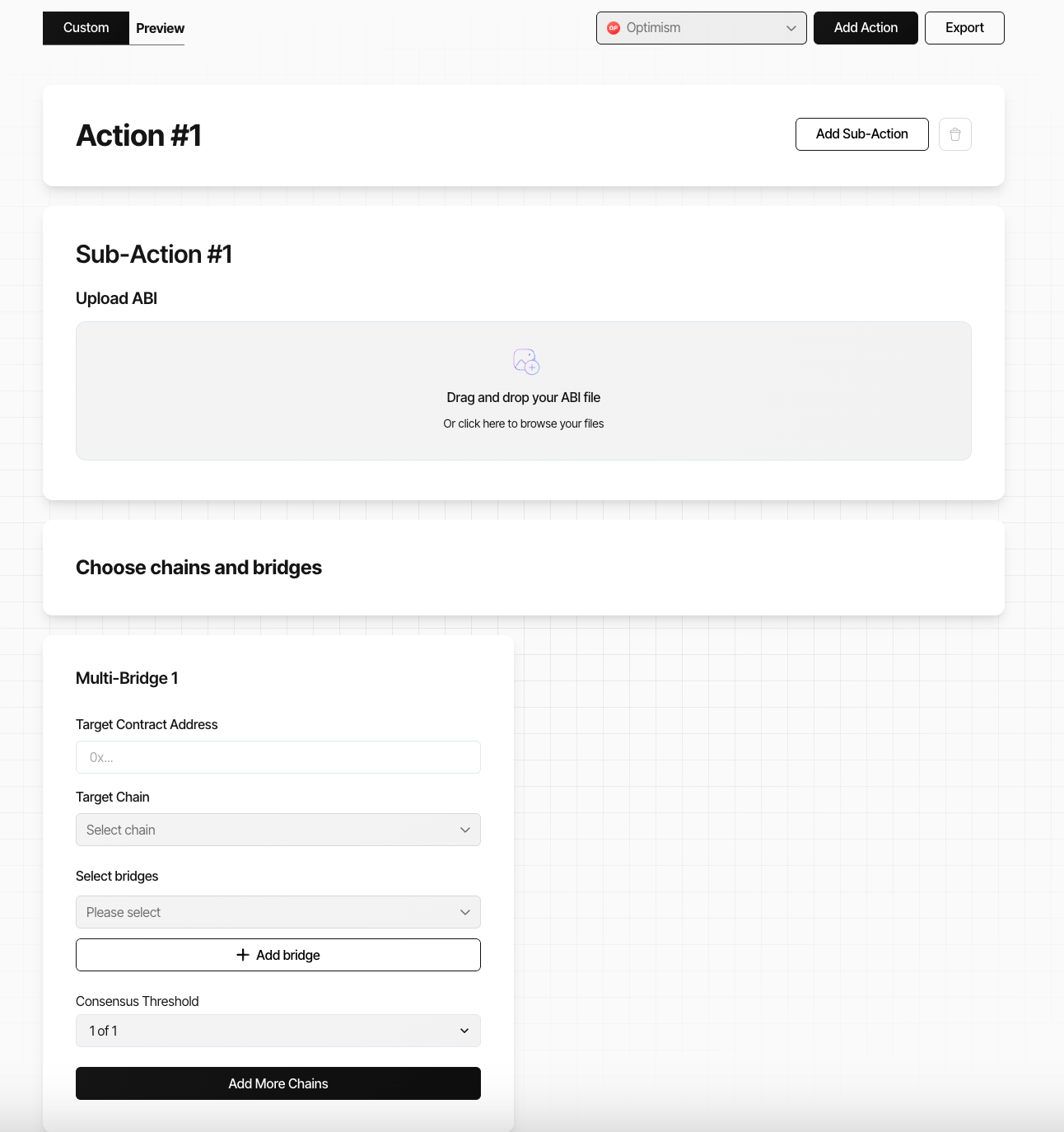
- Enter the target contract address.
- Upload the contract ABI.
- Select the chains and bridge providers.
- Configure the consensus threshold.
- Export the transaction payload.
Governance Token Transfers
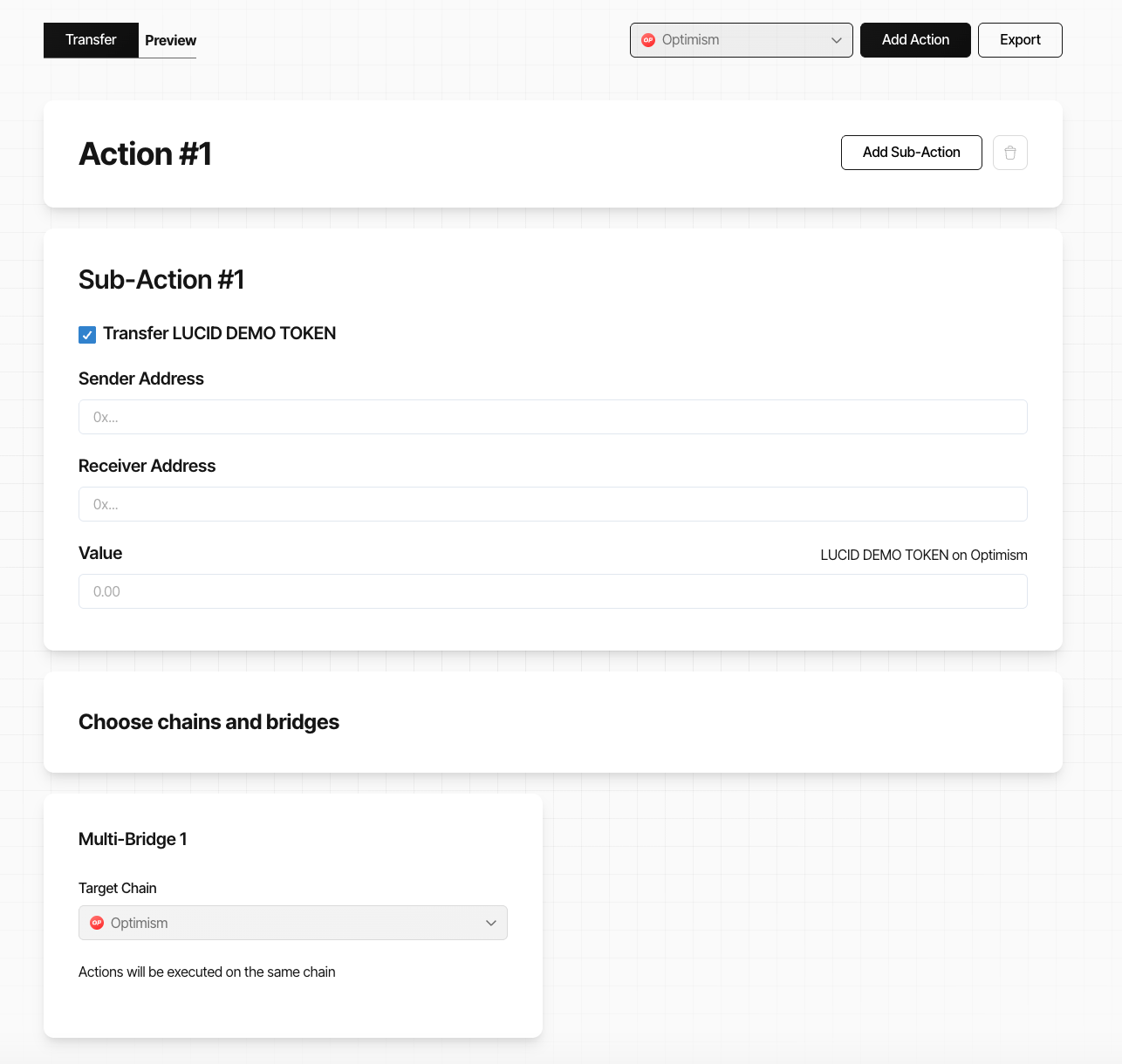
The Transfer flow is used for governance token transfers across supported chains.
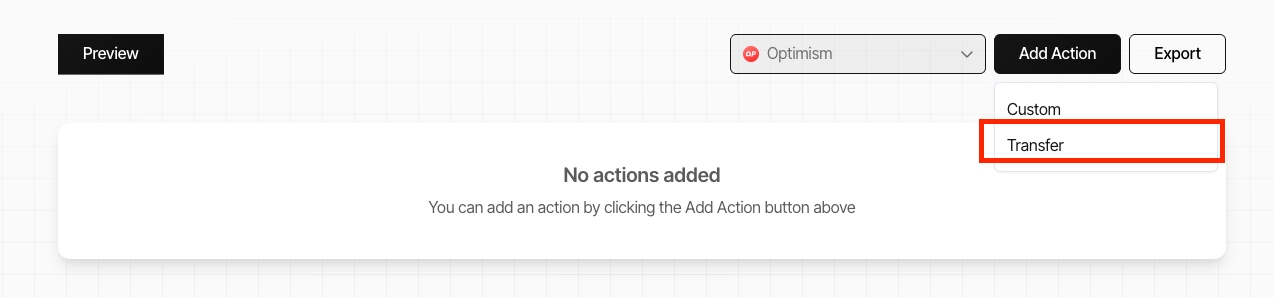
- Enter the sender address.
- Enter the receiver address.
- Define the token amount.
- Select the chains and bridge providers.
- Configure the consensus threshold.
- Export the transaction payload.
Exporting Transactions
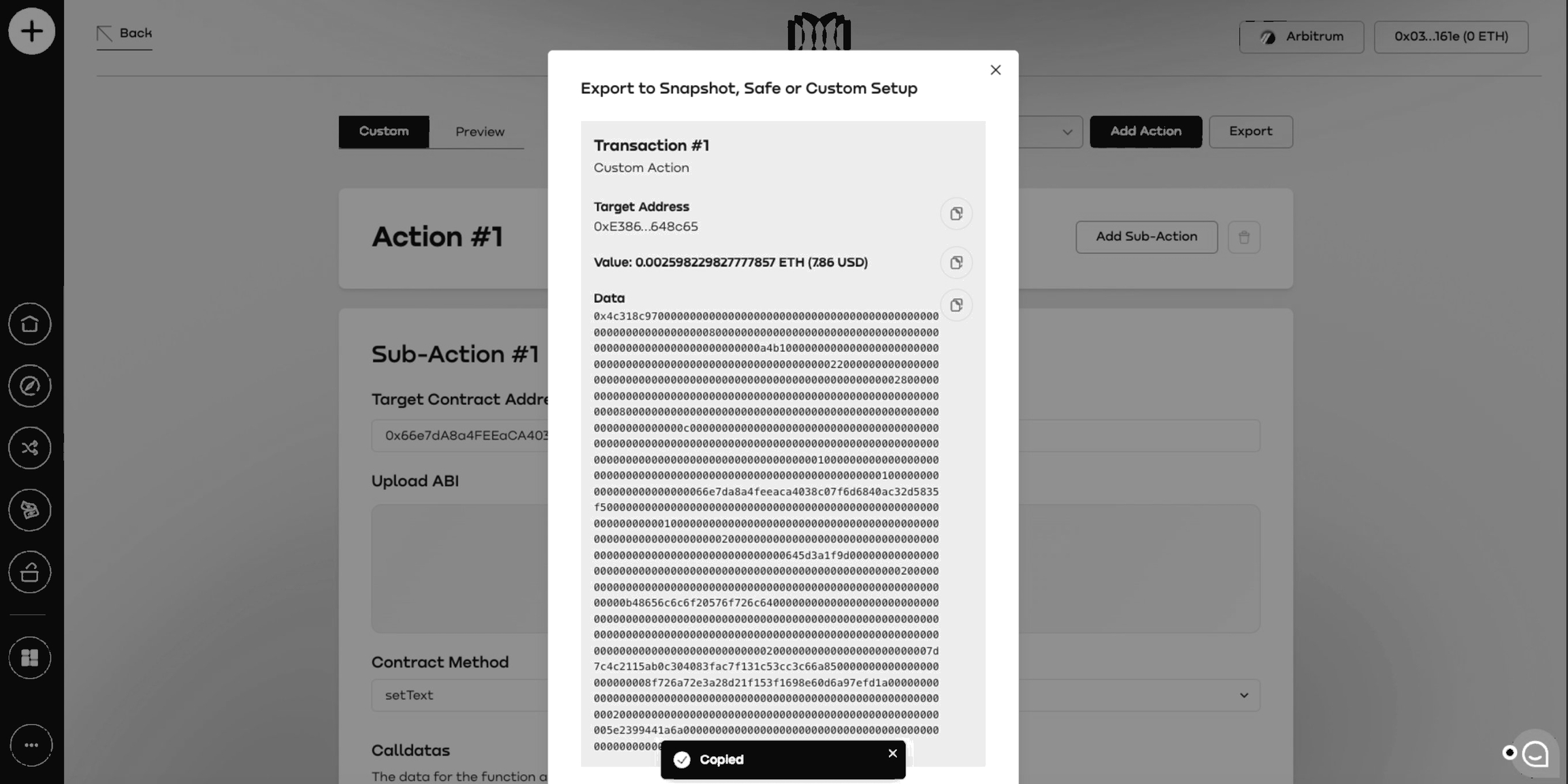
- After completing the configuration for either the Custom or Transfer option, click the Export button.
- This will prepare the transaction for processing and submission.
Copy the following details displayed on the screen, as they will be used in the Safe Transaction Builder during the final steps below:
- Target Address
- Value
- Data
These values are submitted through Safe for execution.
Executing Transactions Through Safe
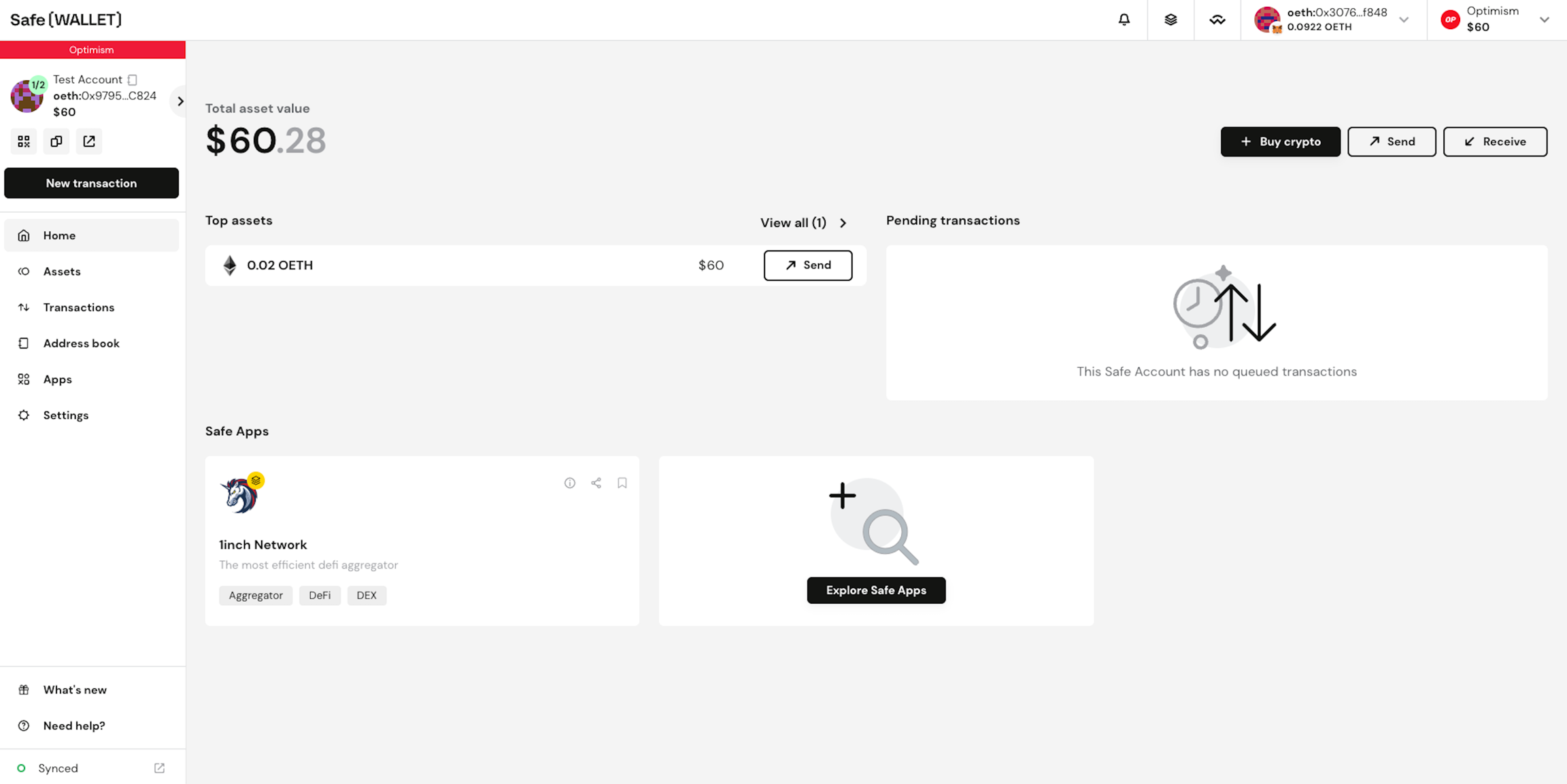
- Open Safe.
- Create or import the required Safe.
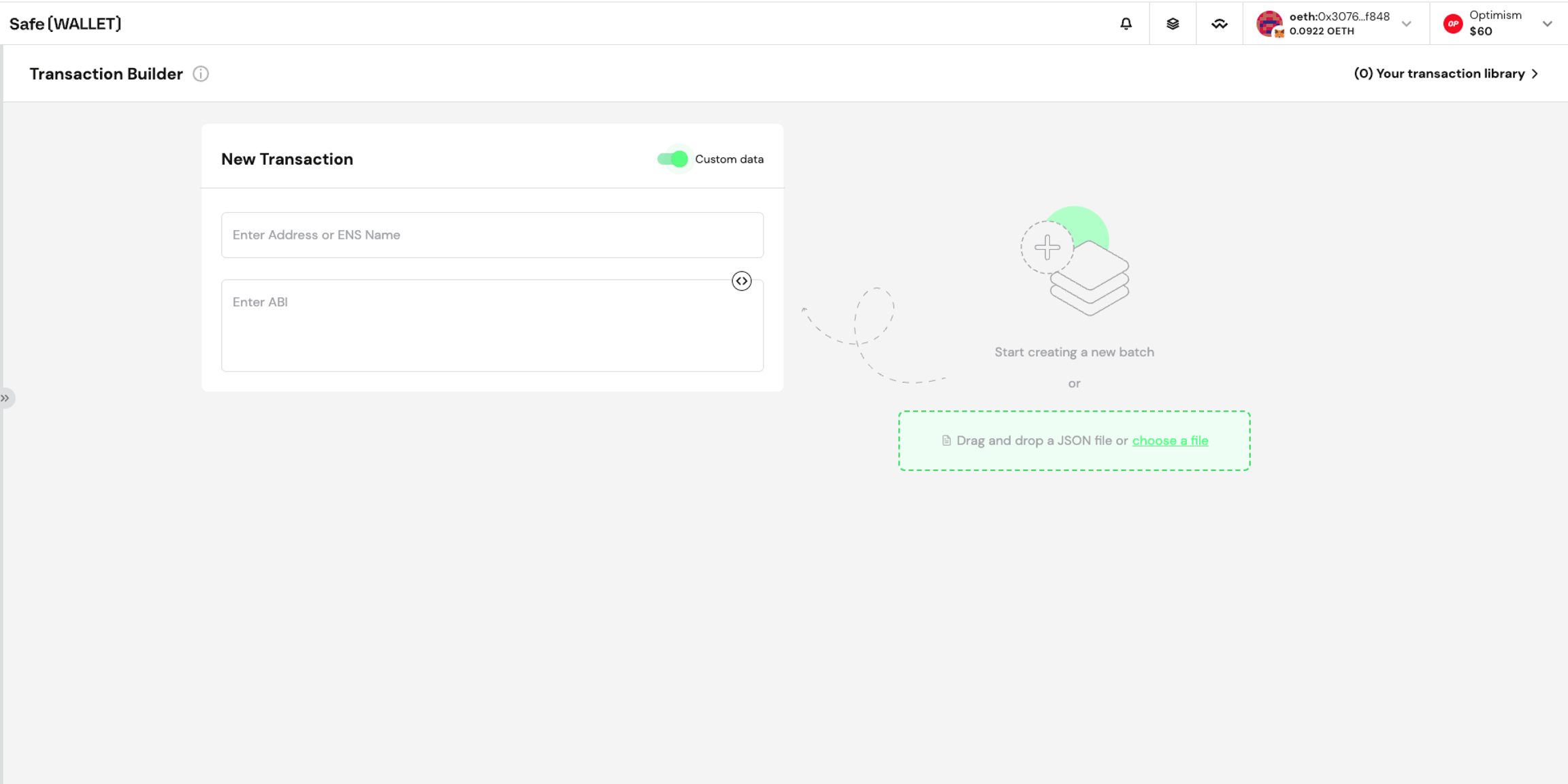
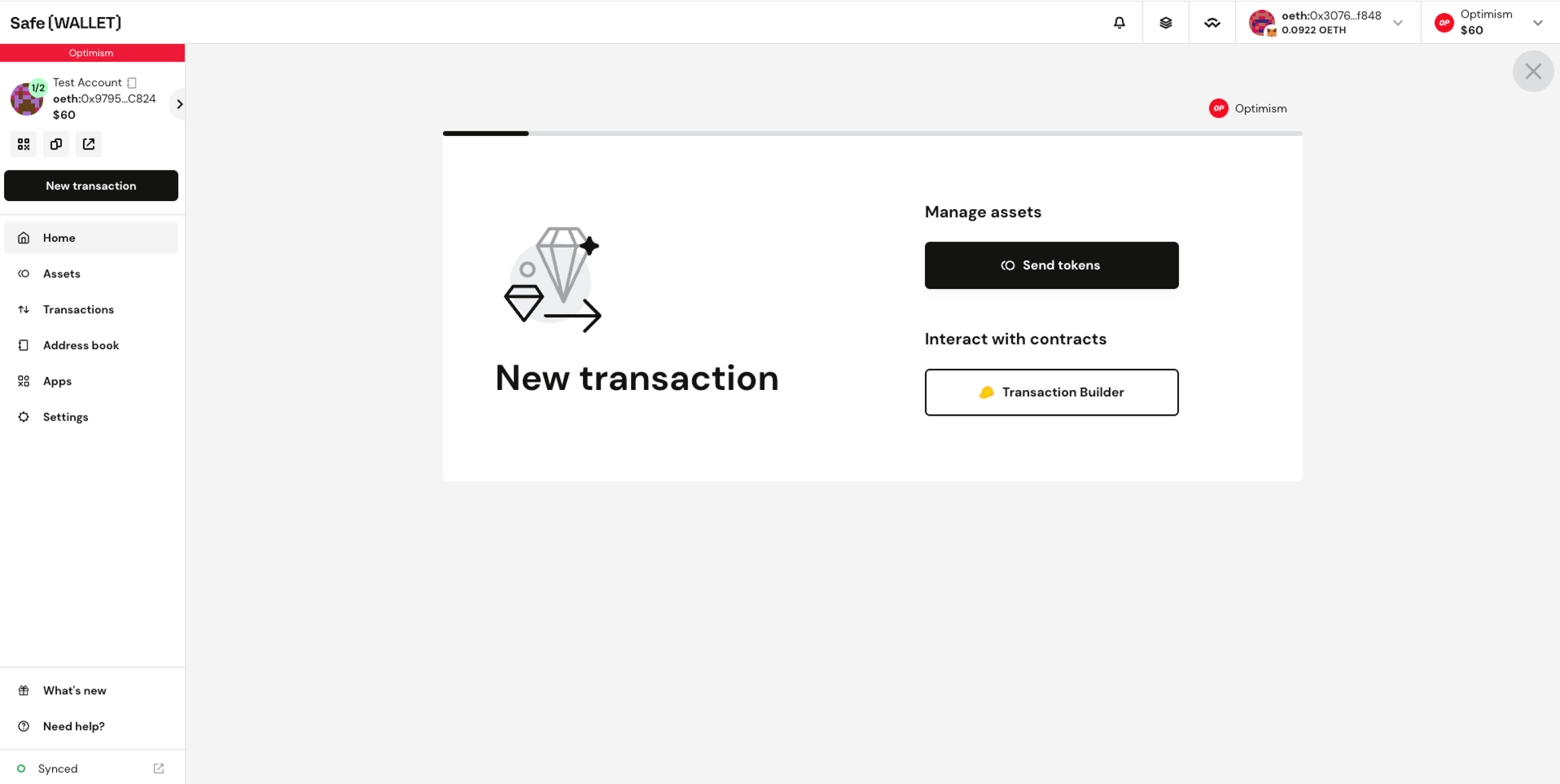
- Open the transaction builder.
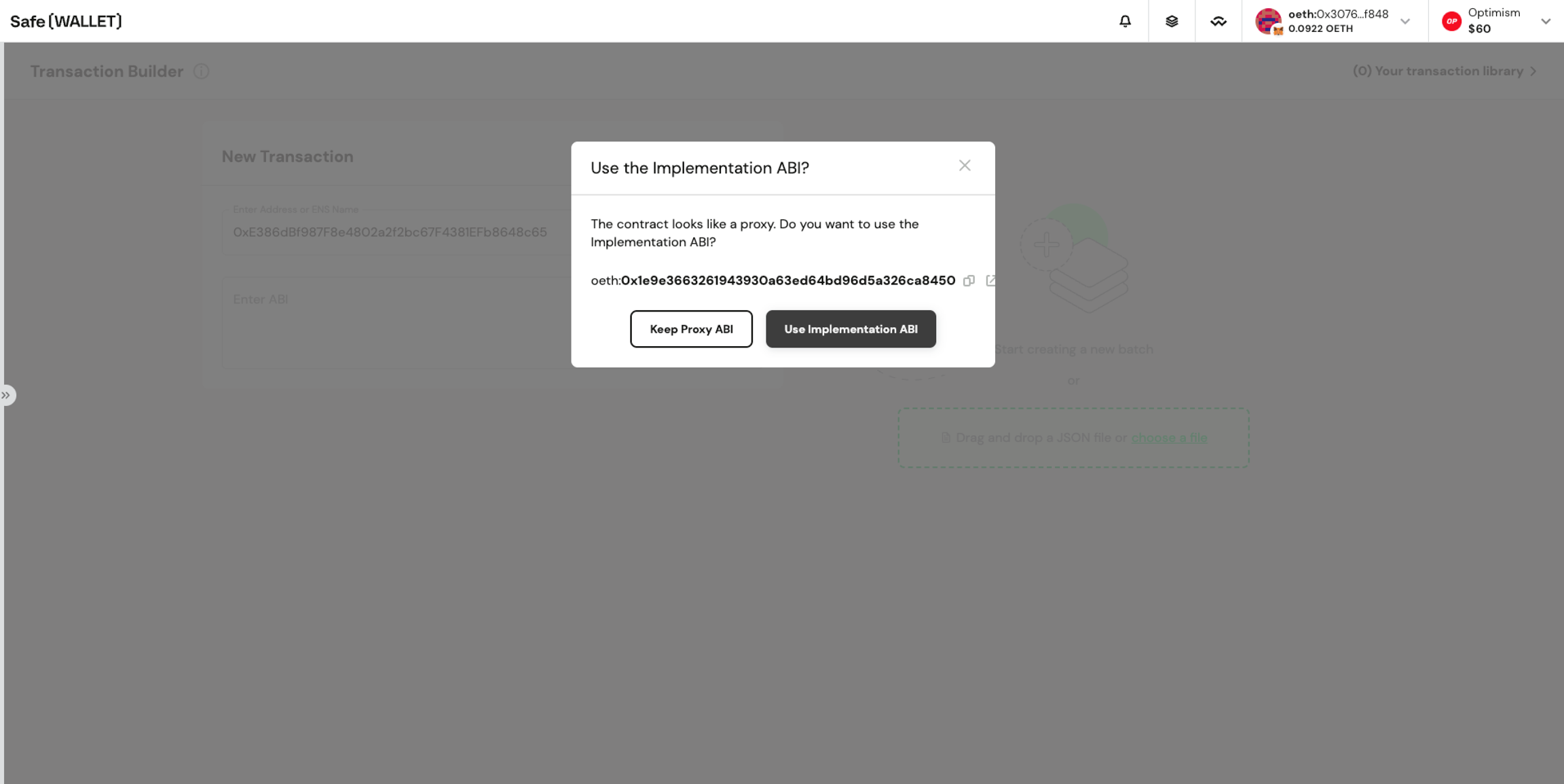
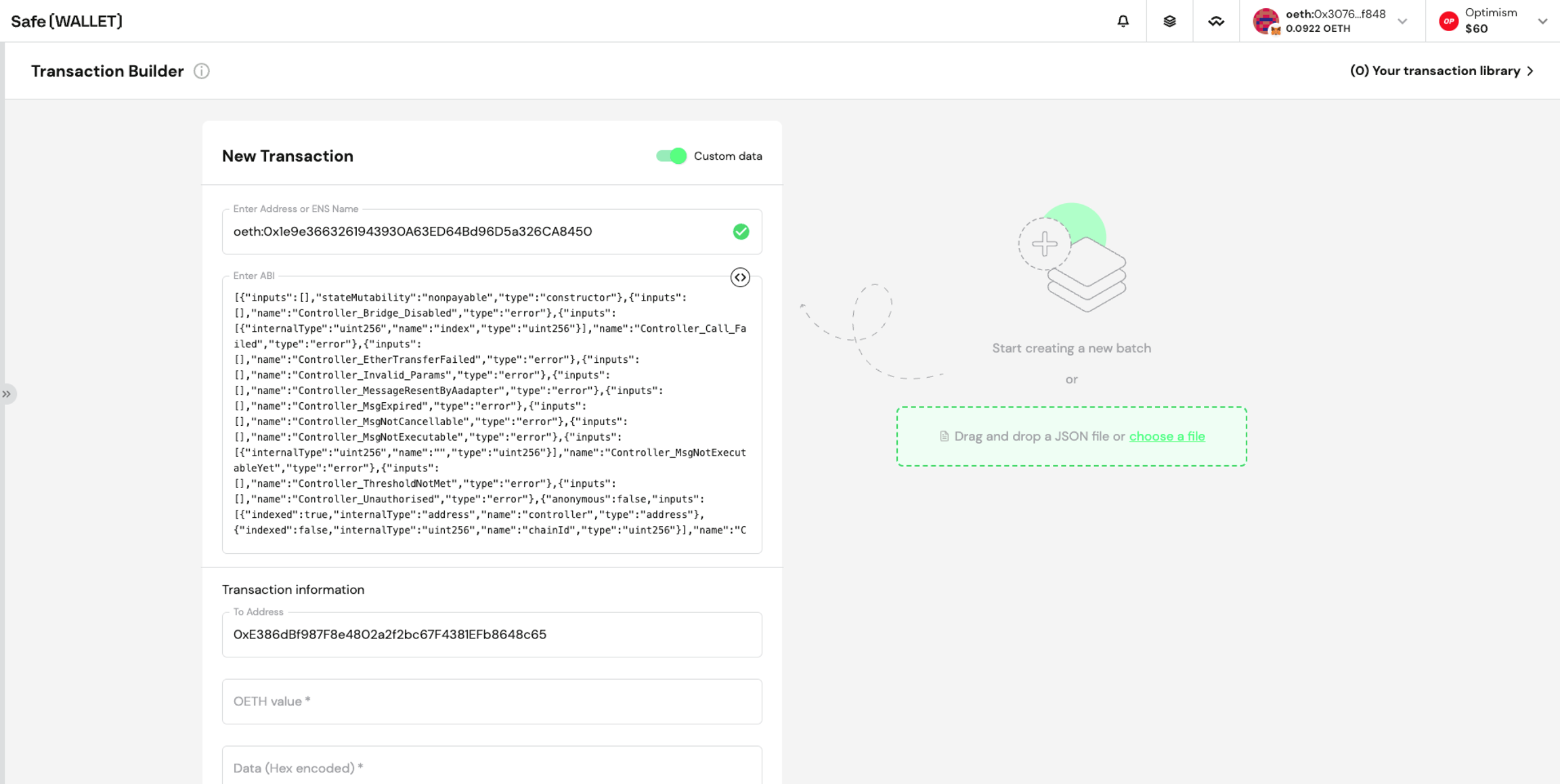
- Paste:
- Target Address
- Value
- Data
- Review the transaction.
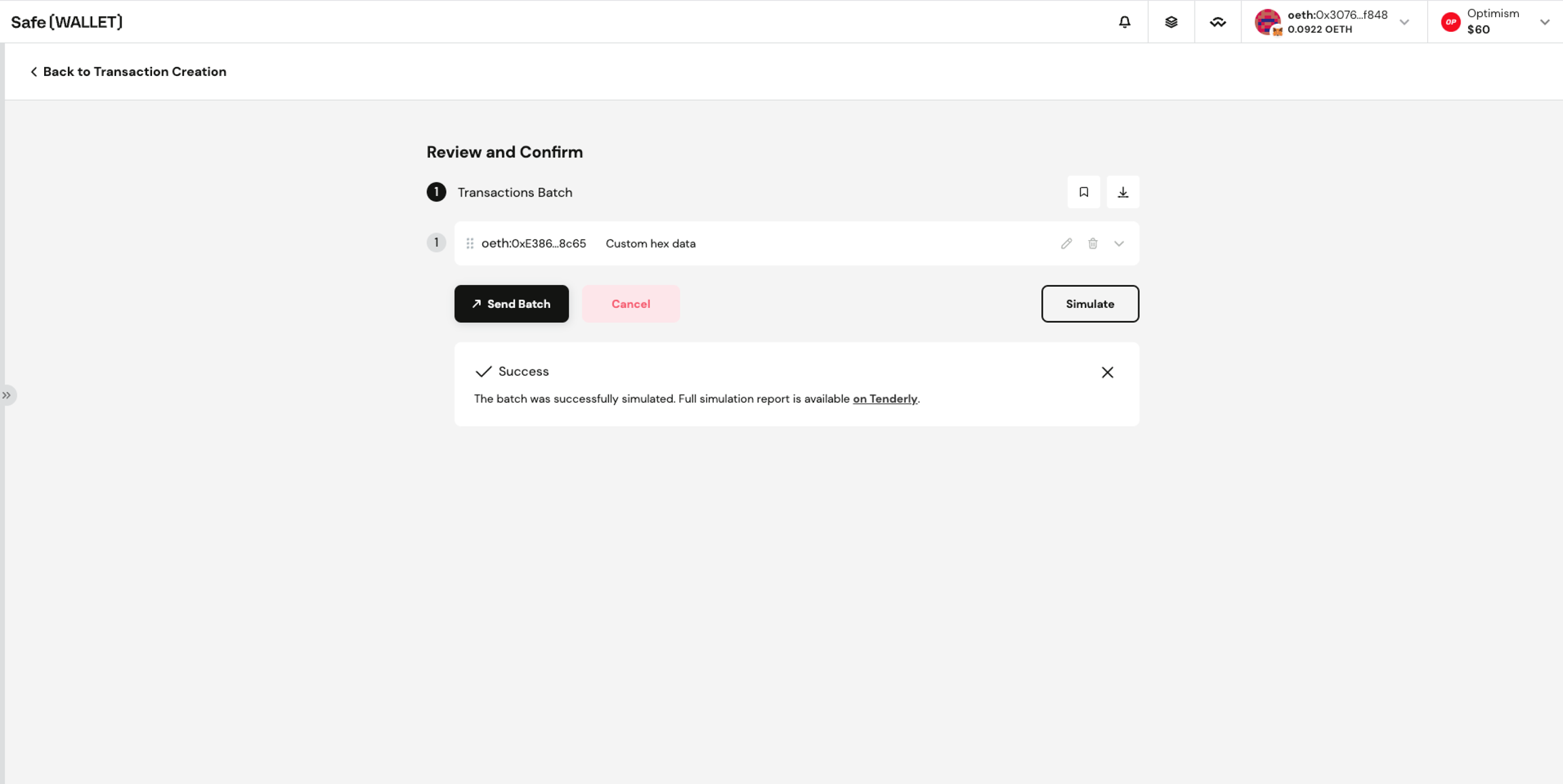
- Sign and execute the transaction.
The transaction finalises once the required approval threshold is reached.